
Upload your photo or screenshot.
Drop in a JPG, PNG, or WebP, or paste it with Ctrl+V / ⌘V.
Hide faces, names, numbers, and anything else you do not want the world to see. Blur every face the tool finds in one tap, drag a box over the rest, and choose blur, pixelate, or a solid black bar. Free, no signup, no watermark, and your photo never leaves your browser.
Drag over anything you want to hide. Tap a detected face to skip or cover it. Each new area uses the current shape and settings. Select an existing area below to change or remove it. Undo: Ctrl/⌘Z. Redo: Ctrl/⌘Shift+Z.
Preparing a sample…
Free · No signup · No watermark · Never uploaded
Drop in a JPG, PNG, or WebP, or paste it with Ctrl+V / ⌘V.
Tap Blur All Faces, or drag a box or brush over any part.
Raise Strength and inspect each area. Use solid coverage for private text.
Save as JPG, PNG, or WebP, or copy it straight into a chat.
Tap Blur All Faces and every face the tool finds gets blurred at once, from the friend next to you to the strangers in the back. Tap any face to unblur it, so you can keep yourself and your friends clear while everyone else stays hidden. Prefer blocks? Switch the faces to Pixelate. For faces turned to the side or very small in the frame, add a box by hand so none slip through.
Blur All Faces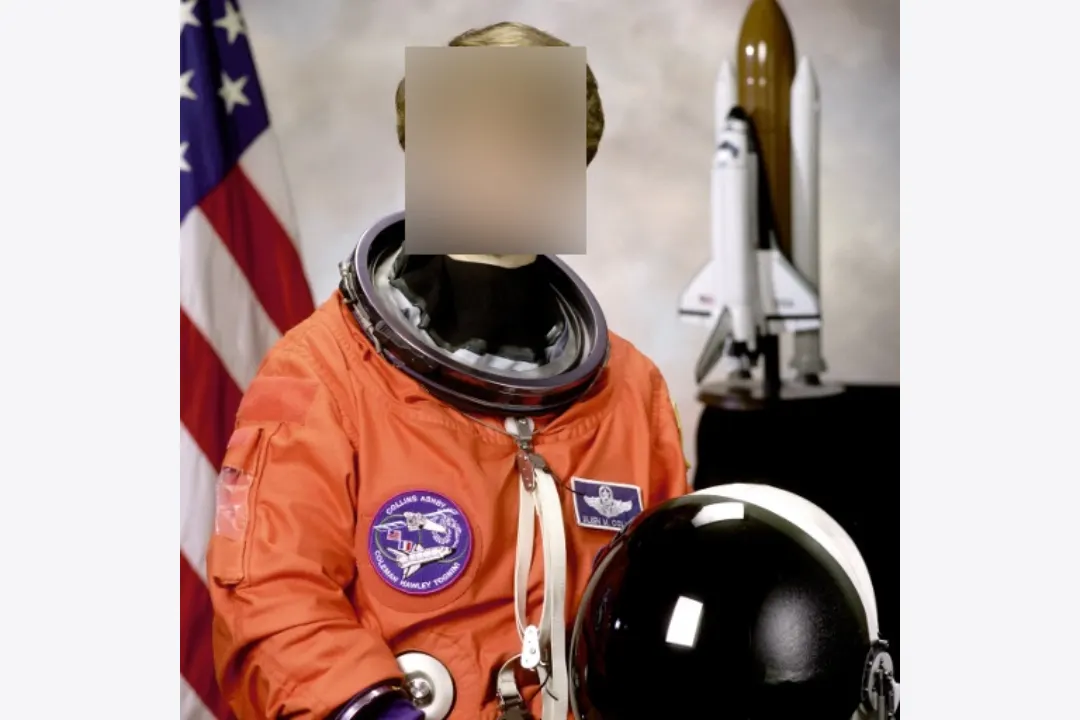
Most photos only have one or two things to hide. Drag a rectangle over a license plate, an ellipse over a face, or brush over a name tag on a tilted shirt. Only the marked area changes. Everything outside it stays exactly as sharp as the original.
Blur Part of an Image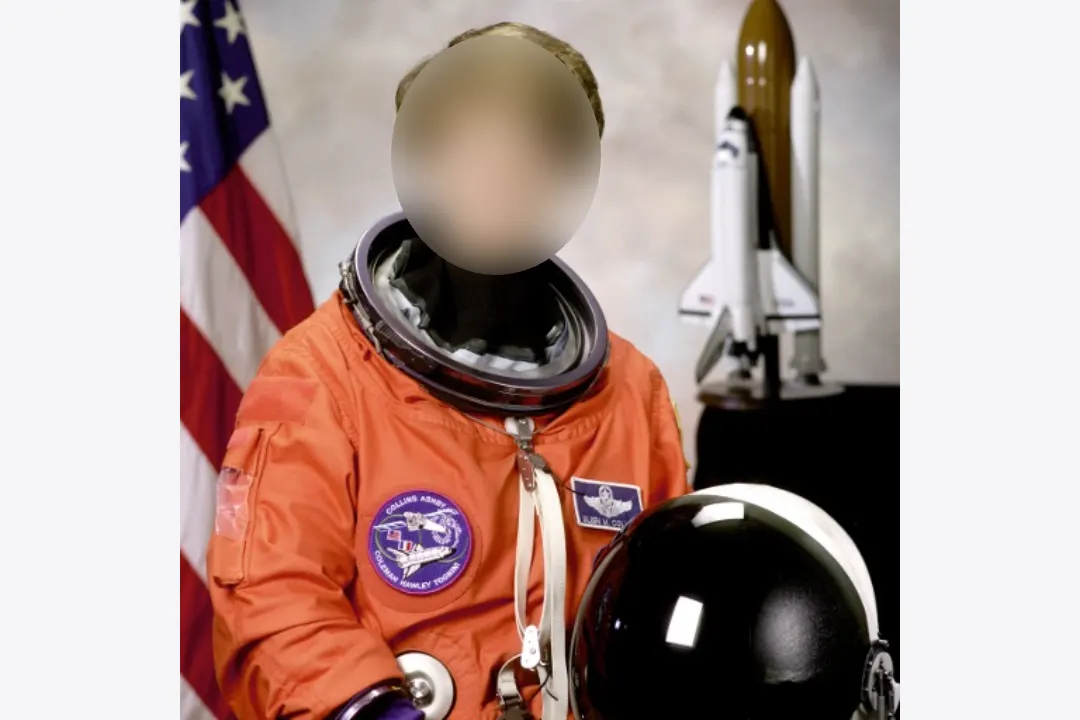
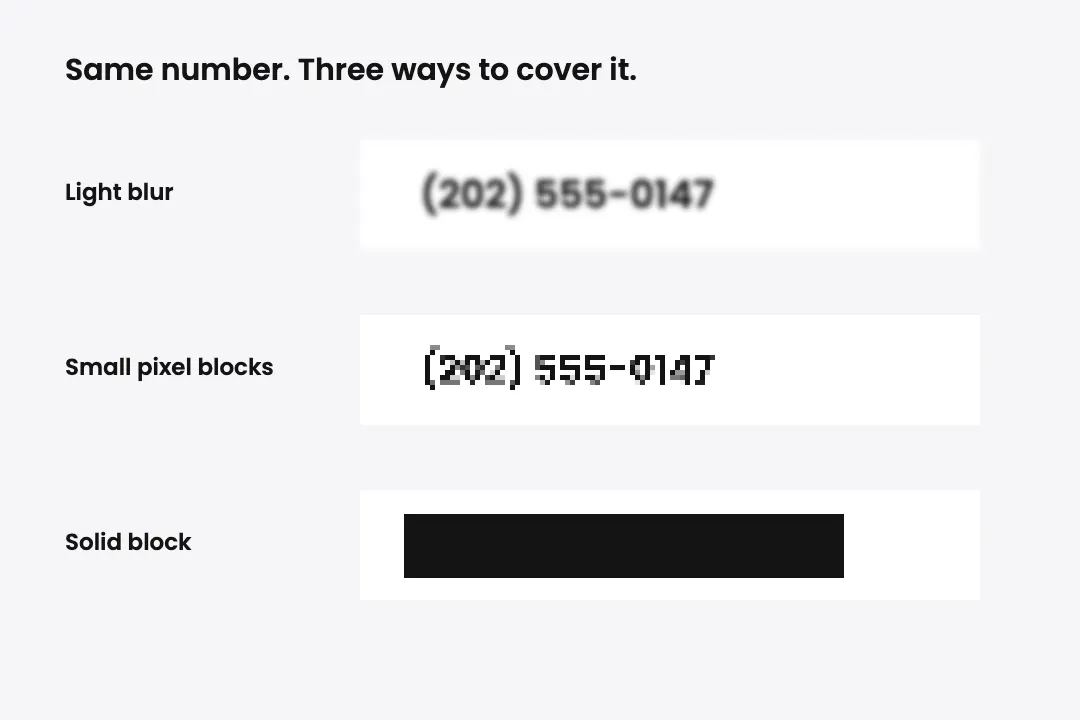
For text, a solid bar is the safest choice. Switch an area to Solid Block and it paints over the original pixels in black, white, or any color you pick. Use it on phone numbers, email addresses, account names, and order numbers before you post a screenshot or attach it to a support ticket.
Black Out Text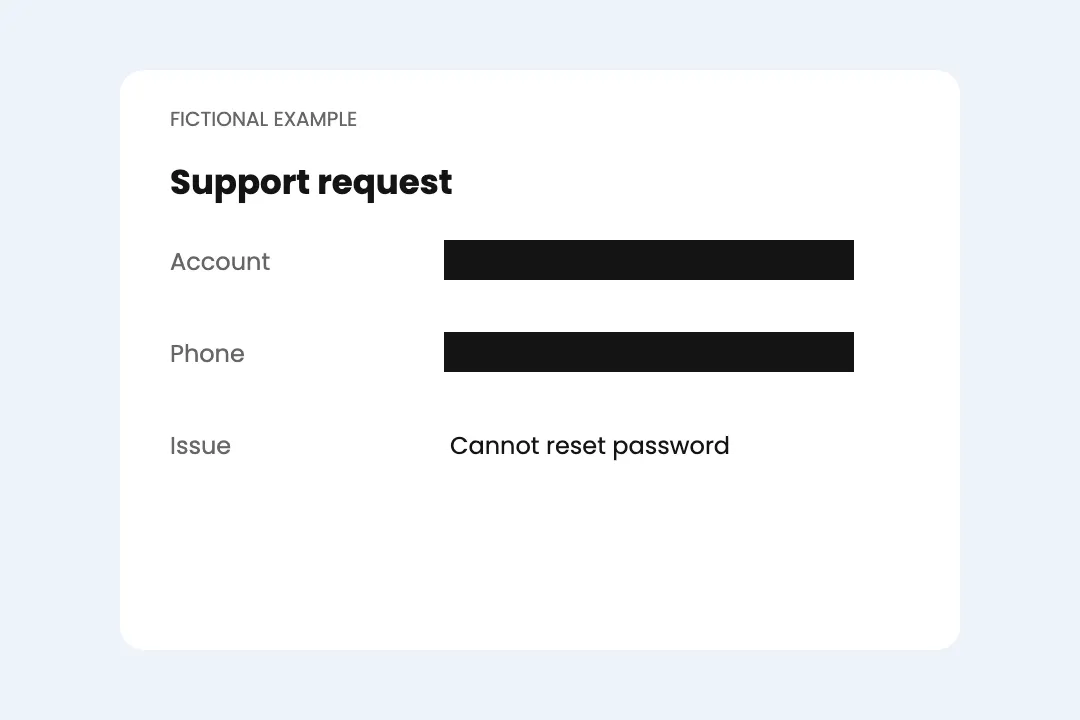
Sending a photo of an ID, a bill, a contract, or a prescription? Redact the parts the other person does not need, like the ID number, the address, or the account details, and send the rest. You can mark as many areas as you need in one pass and download a single clean image.
Redact an Image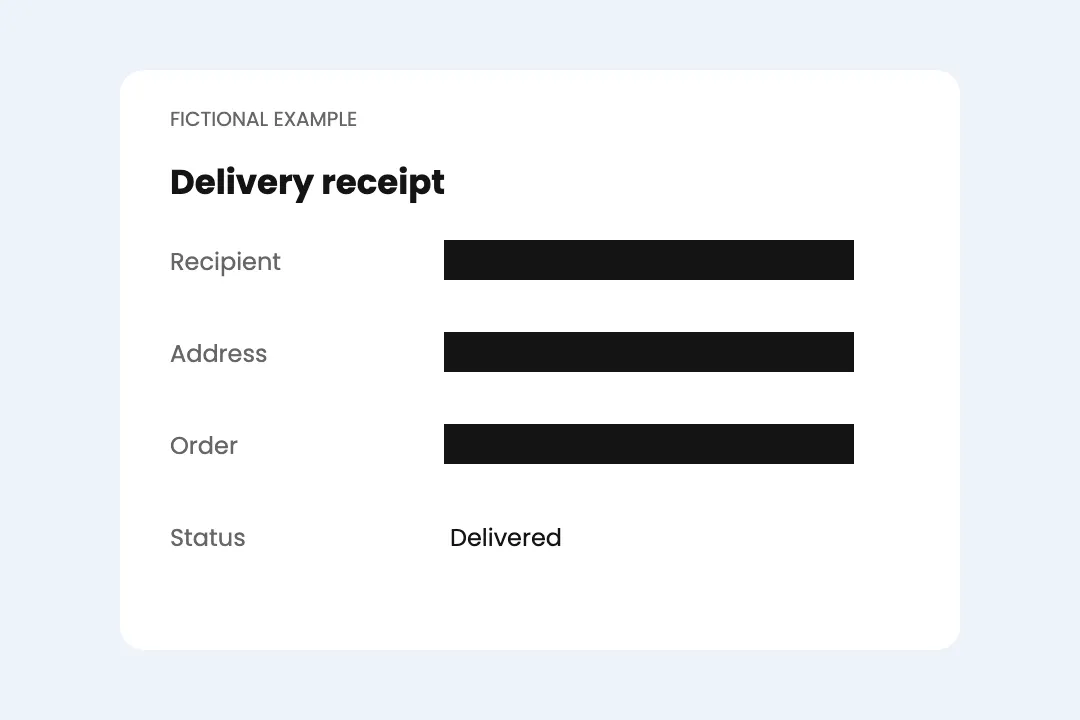
Light blur preserves the shape underneath, so text and faces can sometimes be guessed. Small pixel blocks over short text can also be guessed by special tools. Strong blur and larger blocks hide more detail, but neither guarantees anonymity. For passwords, card numbers, ID numbers, and addresses, use a solid block that fully covers the information. The covered source pixels are absent from the flattened export; keep your original file private.
You want to post a street or beach photo, but a dozen people walked through the frame. Blur their faces and keep your shot.
Many parents hide their children's faces, or other kids' faces, before sharing team and class photos online.
A screenshot of an app or a chat often shows emails, user names, or API keys. Black them out before the screenshot goes to a public forum or a support team.
Selling a car or renting out a room? Censor the license plate and the house number so the photo cannot be traced back to you.
A funny chat is worth sharing, but the names and profile photos in it are not yours to post. Blur them and share the joke.
Hide as many faces and numbers as you need without paying.
Open the page and start censoring. Nothing to sign up for.
Your download is just your censored photo, with no logo added.
Faces are found and blurred in your own browser, so the image you are trying to protect is never sent anywhere.
Blur, pixelate, or solid block, chosen for each area separately.
Your exported image is a new, flattened file without the original EXIF or GPS metadata. This does not hide locations or private details visible in the picture itself.
Covered the wrong spot? Undo it, or tap a face to bring it back.
A light blur can sometimes be sharpened enough to guess a face, especially if the person is well known. A strong blur makes that much harder. If someone really must not be recognized, use a solid block over the face instead.
It finds most clear, front-facing faces. Very small faces, faces turned to the side, and faces partly covered by hats or hands can be missed, so check the result and add a box by hand for any it skipped.
Yes. Open the page in your mobile browser, upload the photo, and tap Blur All Faces or drag over an area with your finger.
Your photo is processed inside your browser and is never uploaded to a server. Inspect every sensitive area before sharing, use solid coverage for private information, and keep the original private.
Not yet. The tool works on images: JPG, PNG, and WebP. For a PDF, take a screenshot of the page first and censor the screenshot.
Only marked areas change, and export preserves the original width and height. PNG keeps unmarked pixels unchanged; JPG and WebP can introduce compression changes across the image.
Yes. JPG, PNG, and WebP downloads are newly encoded from the edited pixels and do not carry over the original photo’s EXIF or GPS metadata. Any address, landmark, or other private information visible in the image still needs to be covered. Keep the original file private.
Use the pixelate image tool instead. It turns the whole picture into big, even pixel blocks.
Use Make Image Blurry for soft focus, motion streaks, radial zoom, spin, and blurry meme effects across the whole picture.
Upload a photo or screenshot, blur the faces, black out the numbers, and download it in a few taps. No account, no watermark, and nothing leaves your browser.
Start Censoring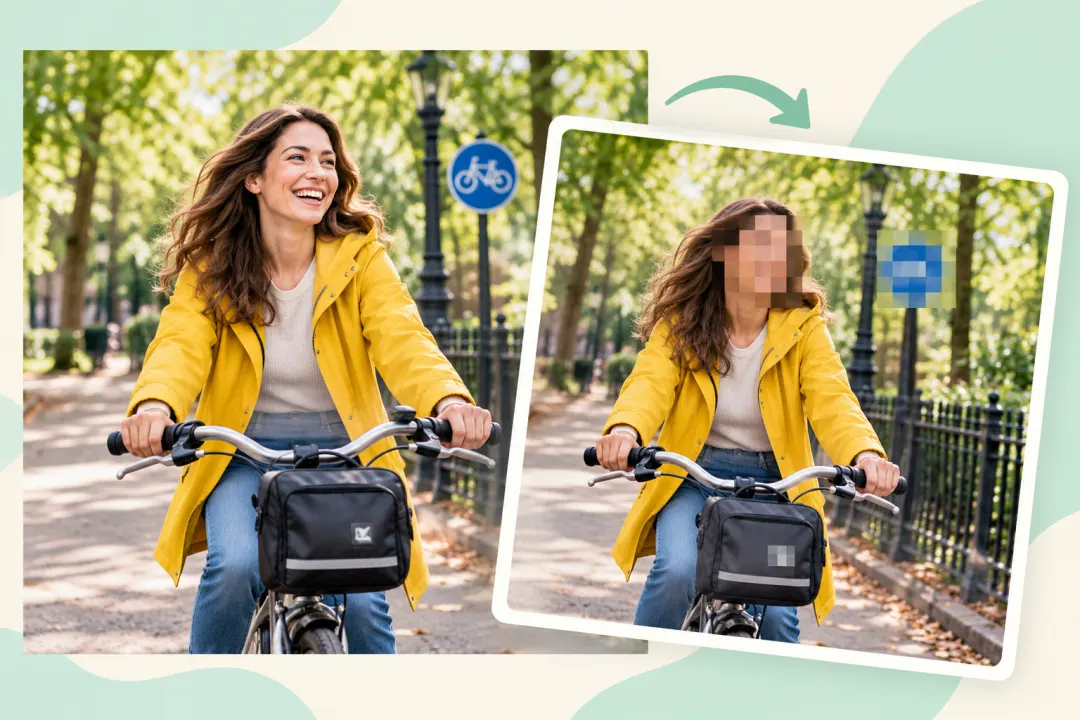
Pixelate a whole photo or select individual areas.
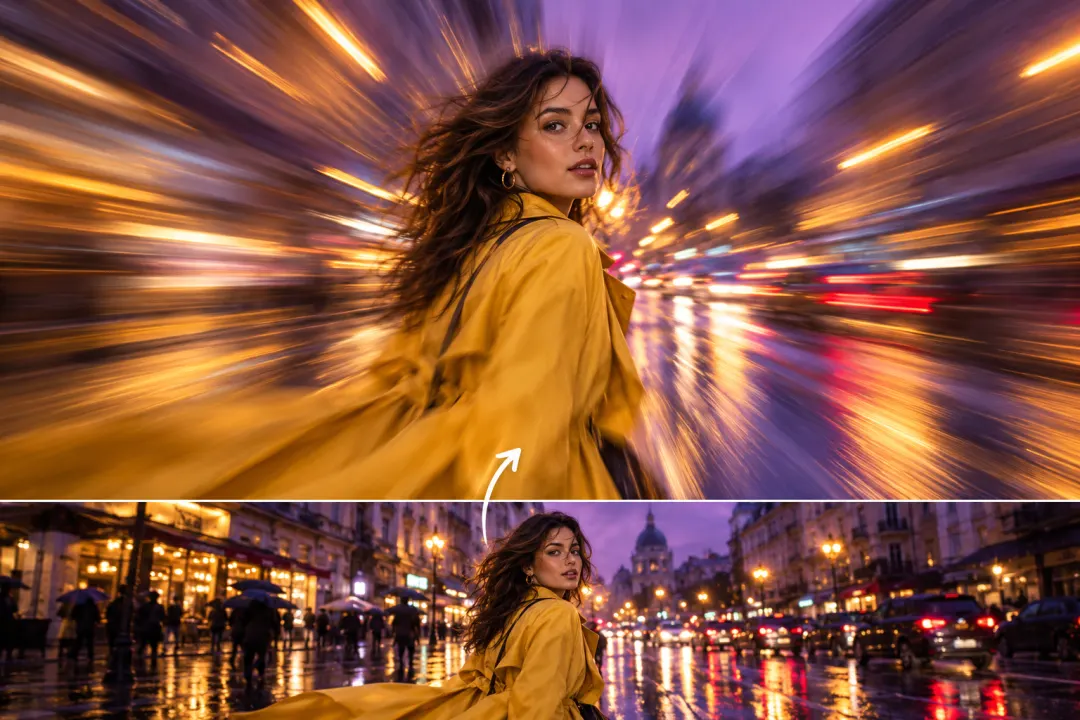
Choose soft focus, motion blur, or radial blur.

Combine small dimensions, JPEG compression, and noise in one edit.