

Low Quality Image Maker
Combine small dimensions, compression, and noise.
Bend, twist, or stretch a photo, then download your distorted image right here.
Or drop a file here / paste with Ctrl+V or ⌘V
JPG, PNG or WebP, up to 20 MB /


Processed on your device. Free, no watermark.
Preparing sample…
PNG and WebP preserve transparency.
Large photos use a working copy up to 1,600 px per side and 2 MP. The full frame stays visible.
The same sample, processed with each effect at 45% strength. These are static examples; your live preview shows your own result.
Bend the picture into repeating horizontal ripples. Change the wave count for broad bends or tighter vibration.
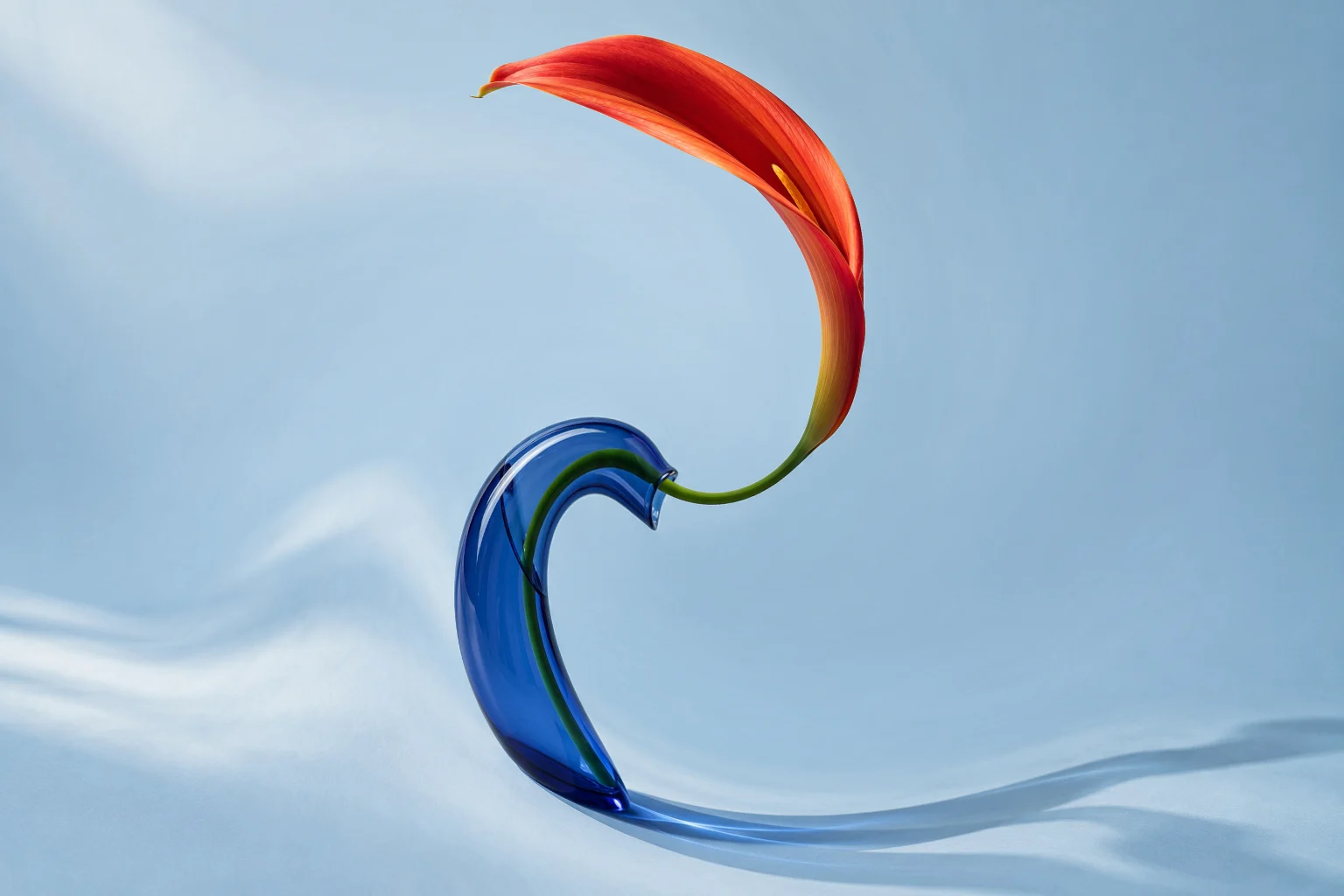
Twist pixels around a center point. Move the center to a face, an object, or a corner and set how far the twist reaches.

Expand the middle of an area for a magnifying-glass look. A small area can exaggerate one feature without changing the whole photo.

Pull an area inward toward its center. Increase strength for a tighter squeeze, or keep it gentle for a subtle reshape.
Upload, drop, or paste a JPG, PNG, or WebP. Wave is applied automatically, so there is a result to start from.
Choose a distortion and adjust Strength. Fine-tune the waves or move the center of a radial effect. Hold Compare to see the source.
Choose an export format and download. The preview uses the same encoded file, including JPG compression and its white background.
It moves pixels to change the shapes in a picture. Wave, swirl, bulge, and pinch reshape the image rather than adding grain, reducing colors, or simply lowering JPEG quality.
Swirl, Bulge, and Pinch affect a circular area. Adjust Center X, Center Y, and Area size to place it. Pixels outside that circle stay unchanged before export encoding. There is no brush selection in this version.
The output keeps the full working frame and aspect ratio. The preview uses contain sizing. Distortion can move pixels toward an edge; samples outside the source frame use the nearest edge color.
To keep processing manageable, inputs are limited to 20 MB, 40 megapixels, and 16,384 pixels per side. Large inputs are resized to a working copy with at most 1,600 pixels per side and 2 megapixels. The actual export dimensions appear beside Download.
Yes. PNG and WebP preserve transparency while pixels are warped. JPG does not support transparency, so transparent areas are filled with white before export.
Reset effect sets Strength to zero and resets the controls. Undo steps back through edits. A zero-strength PNG keeps the working-copy pixels; it does not restore the original file resolution or undo earlier edits from another tool.
No. Decoding, distortion, and export happen in your browser. No account is required. Copy image depends on browser clipboard support and permission; Download remains available if copying is unavailable.
Combine small dimensions, compression, and noise.
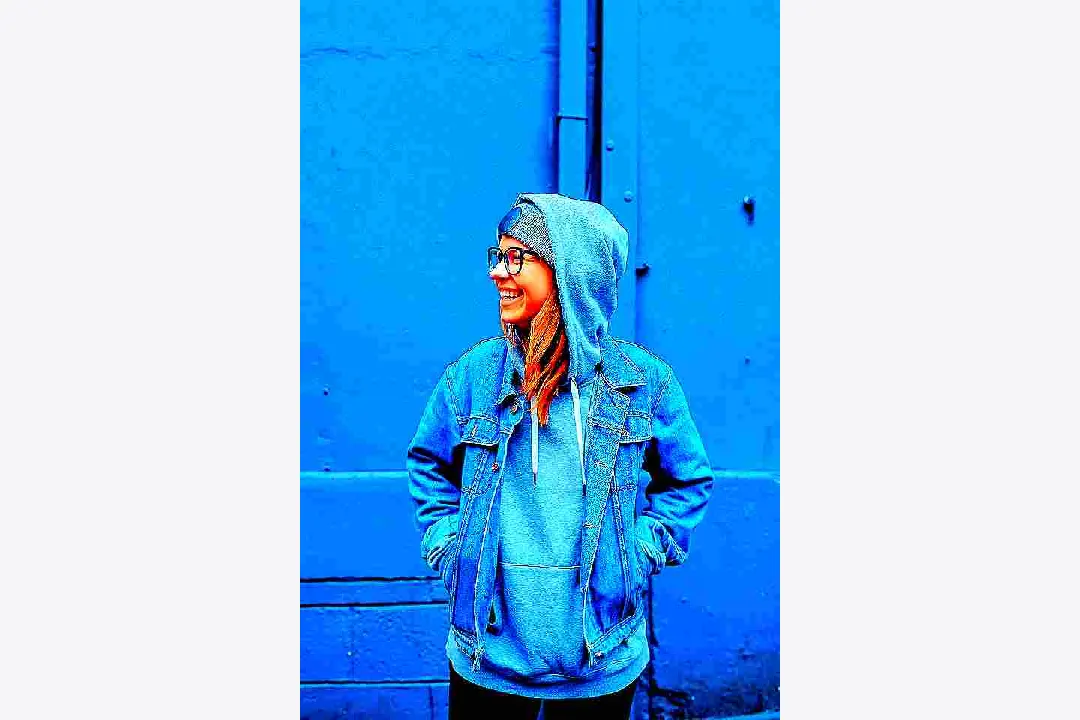
Add intense color and crunchy contrast to your warped image.

Soften detail with blur instead of reshaping the picture.