
Upload your image.
Drop in a JPG, PNG, or WebP, or paste it with Ctrl+V / ⌘V.
Reduce color levels and turn everyday photos into bold, graphic art.
Or click to browse · Ctrl/Cmd + V to paste
JPG, PNG, WEBP · Up to 10 MB / 6 MP / 8,192 px per side · Paste with Ctrl+V / ⌘VYour photos stay on your device. Always.
 OriginalPosterize
Fewer shades per color. Bold, banded look.
Accepted images keep their original dimensions (up to 6 MP / 8,192 px per side). Restore original restores your untouched original file. PNG and WebP support transparency; JPG uses white behind it.
Free · No signup · No watermark · Stays in your browser
Preparing your colors…
Click a color to copy its hex code. This palette reads the actual downloaded file. JPG and WebP encoding may add colors; use PNG for exact color edges. Transparent pixels are excluded.
Drop in a JPG, PNG, or WebP, or paste it with Ctrl+V / ⌘V.
Posterize, Reduce Colors, Threshold, or Pop Art.
Fewer levels or colors means a bolder, flatter picture.
Save as PNG for the cleanest color edges, or as JPG or WebP.
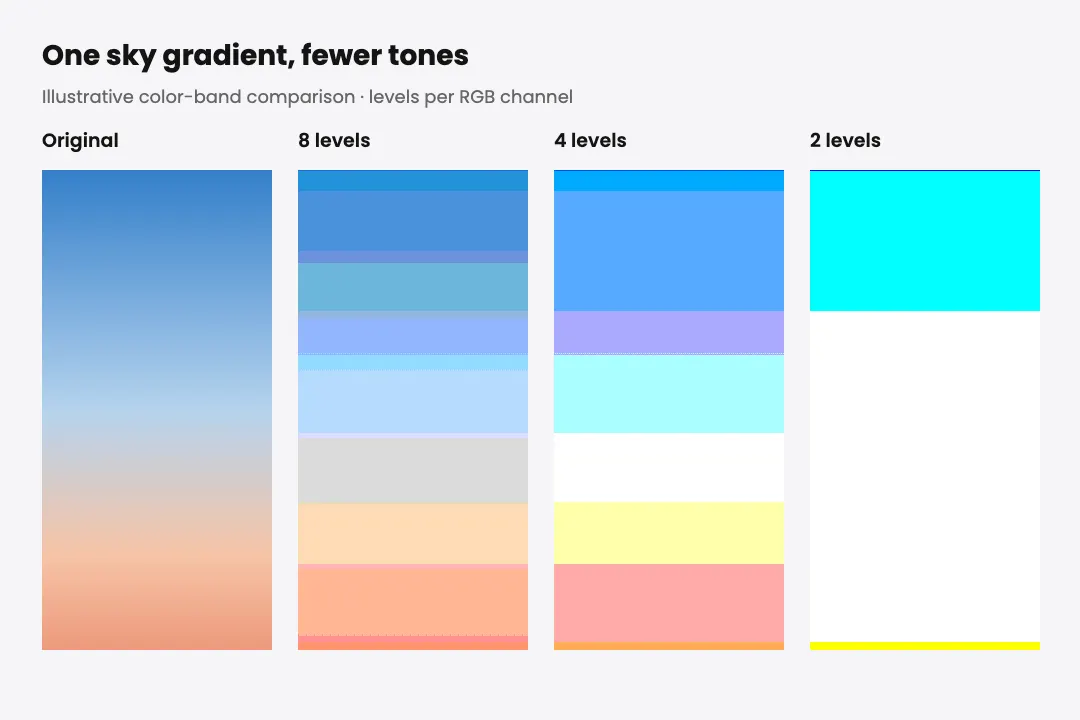
Posterize cuts down how many shades each color can have. Drag Levels down to 4 or 5, and smooth gradients in skies, skin, and walls snap into flat, solid bands. Somewhere around 3 levels, a normal photo starts to look like a vintage travel poster. Go all the way to 2 and you get a loud, almost cartoon version.
Posterize My Photo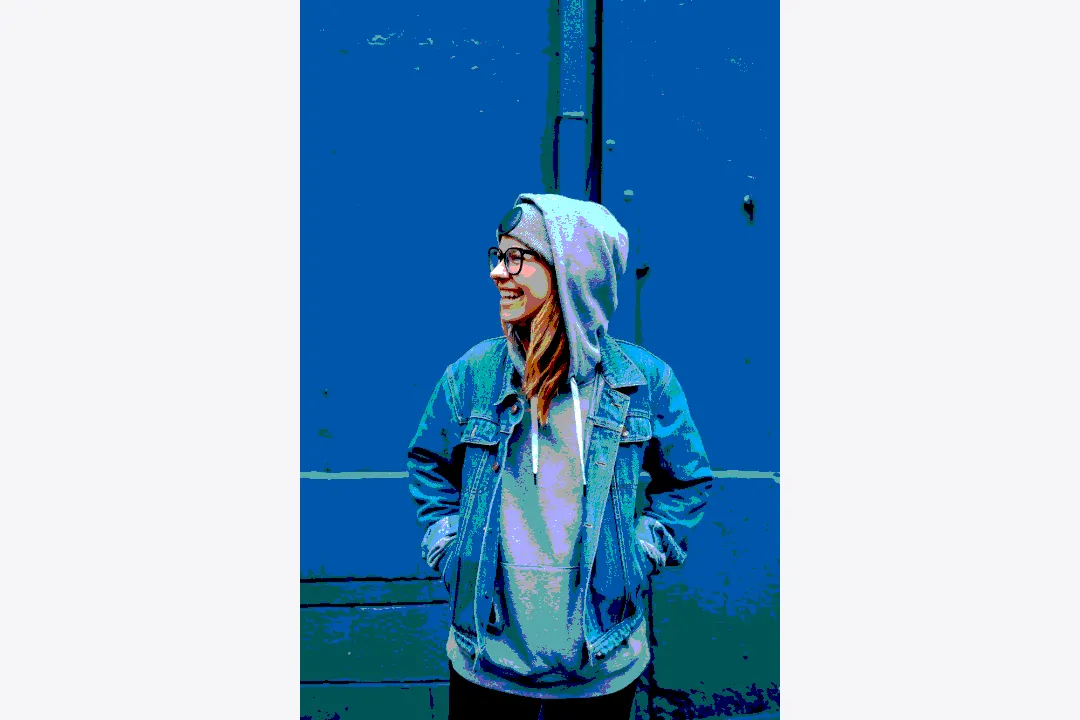
Reduce Colors works differently. Instead of cutting shades evenly, it finds the main colors in your photo and keeps only those. Choose 8 colors and you get a clean, flat version that still feels like the original. The palette under the preview shows every color used, so you can copy the color codes for a logo, a print, or a design.
Reduce Colors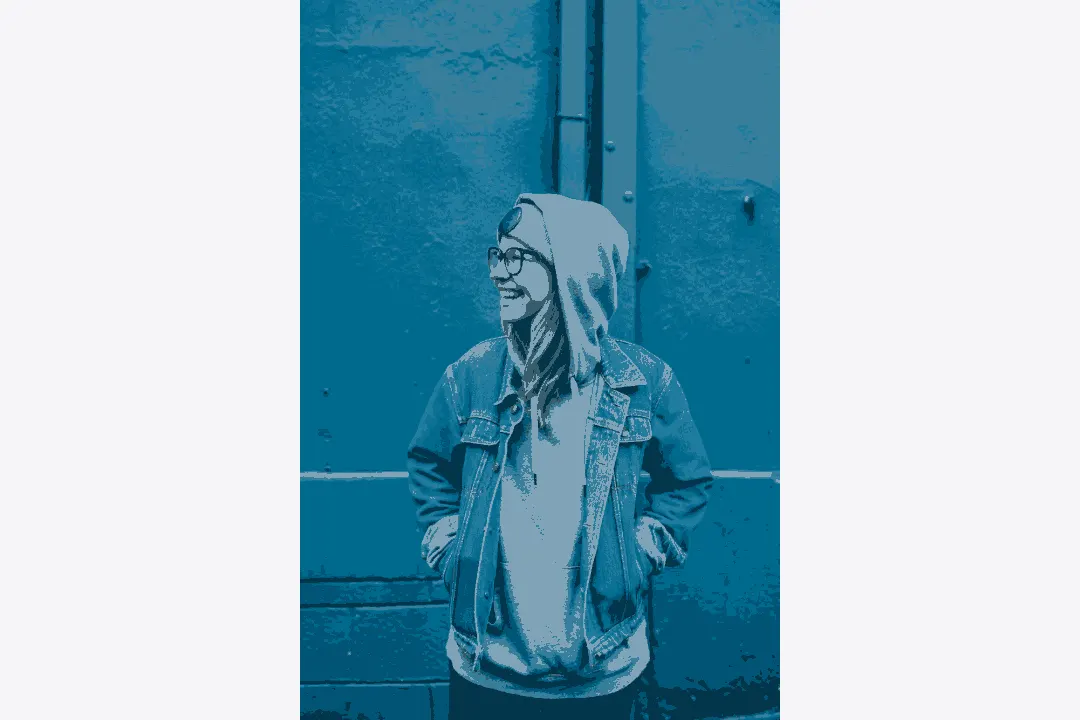
Threshold drops everything into just two colors: black and white, no gray at all. Move the Cutoff slider to decide where the line falls, and watch details appear or vanish. It is the quickest way to turn a photo into a stencil, a stamp, or a bold graphic you can cut out.
Try Threshold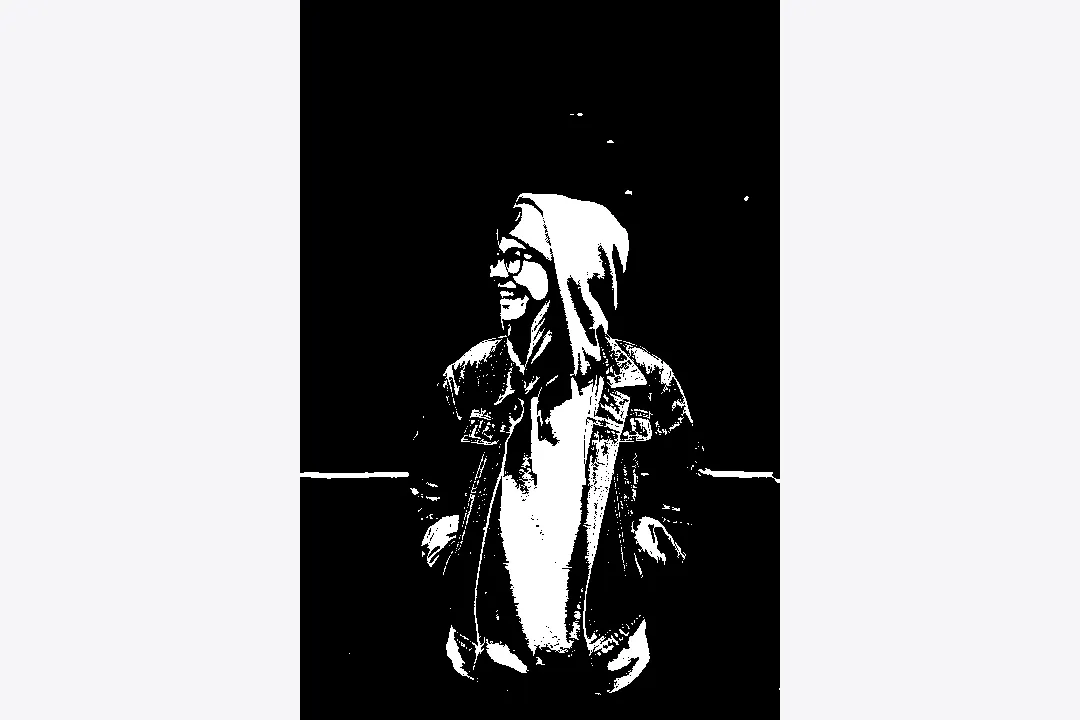
Pop Art posterizes your picture down to four strong colors, then swaps them for a bright, punchy palette. A plain selfie becomes something that looks like it belongs in a 60s gallery, ready for a poster, a sticker, or a profile picture.
Make Pop Art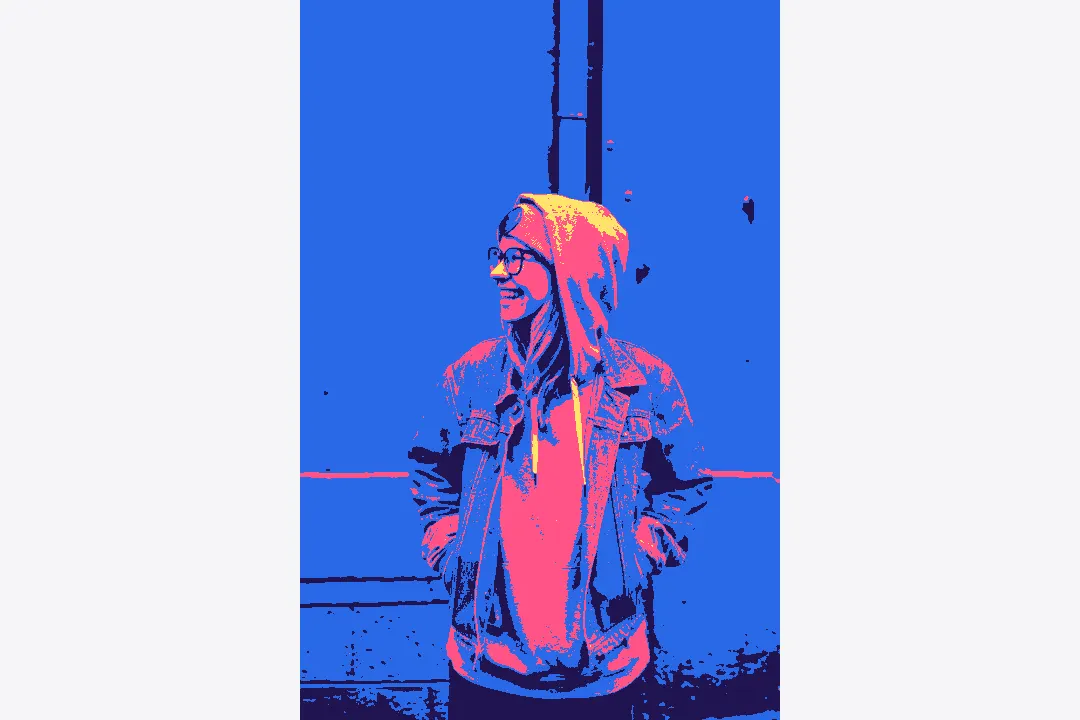
Strong posterizing can leave harsh stripes. Turn on Smooth with dithering and the tool mixes tiny dots of neighboring colors along the edges, so the picture looks smoother while still using only a few colors. It is the same trick old computers and games used to fake more colors than they had.
To posterize an image means to cut the number of tones or colors in it, so smooth gradients turn into flat, visible steps. The name comes from old poster printing, where each color needed its own ink and its own printing plate, so designers worked with only a few flat colors. Today the same banded look shows up in pop art, screen-printed T-shirts, comic art, and heavily compressed images.
Reduce Colors to 3 or 4 to plan your ink palette. The download is a raster image; separate the colors into print layers in your design software.
Threshold turns a portrait into clean black and white shapes that work for spray paint stencils, stamps, and vinyl cutters.
A few flat colors and soft bands give any landscape the look of a classic printed poster.
Four bright colors make a selfie stand out in a crowded feed.
Harsh color bands look like an image that went through too many bad saves, which fits right in with low quality memes.
Posterize as many photos as you like, free.
Open the page and start cutting colors. Nothing to sign up for.
Your poster downloads clean, with no logo on top.
The colors are cut on your own device. Nothing gets uploaded.
Posterize, Reduce Colors, Threshold, and Pop Art in one place.
The palette shows every color in the result, ready to copy.
Posterize keeps several shades of each color, just fewer of them. Threshold keeps only two: every pixel becomes either black or white.
Go to Image, then Adjustments, then Posterize, and set the number of levels. This tool does the same thing in your browser, plus Reduce Colors, Threshold, and Pop Art.
For a subtle retro look, try 6 to 8 levels. For a bold poster, try 3 to 4. Two levels gives the strongest, most graphic result.
Posterizing turns smooth gradients into a few flat steps, and those steps show up as stripes, especially in skies and on skin. Raise the levels or turn on dithering to soften them.
It can, especially as PNG, but the result depends on image detail, dithering, transparency, and the original format. Compare the actual file size shown next to the tool.
You can upload JPG, PNG, and WebP, and download as JPG, PNG, or WebP.
Try the halftone effect tool for comic dots, newspaper screens, CMYK print, and transparent ink patterns.
Use the low quality image maker instead. It mixes JPEG damage, blur, and noise for a reposted, beaten-up look.
Use invert image colors to turn each RGB channel to its opposite, work on one area, or correct a scanned negative.
Upload a photo, drag the slider down, and watch it turn into a poster. No account, no watermark, no upload.
Posterize an ImageTry 16 levels to retain more shading, 4 for bold bands, and 2 for the strongest color breaks. Levels count shades per RGB channel, not the total number of colors. Enable Grayscale for luminance-only bands, or choose Reduce Colors for a bounded palette.
Posterizing simplifies colors while keeping the original pixel grid. Pixelation combines neighboring pixels into larger blocks. Choose posterizing for flat-color portraits and graphics; choose pixelation when you want visibly chunky edges.

Combine small dimensions, JPEG compression, and noise in one edit.
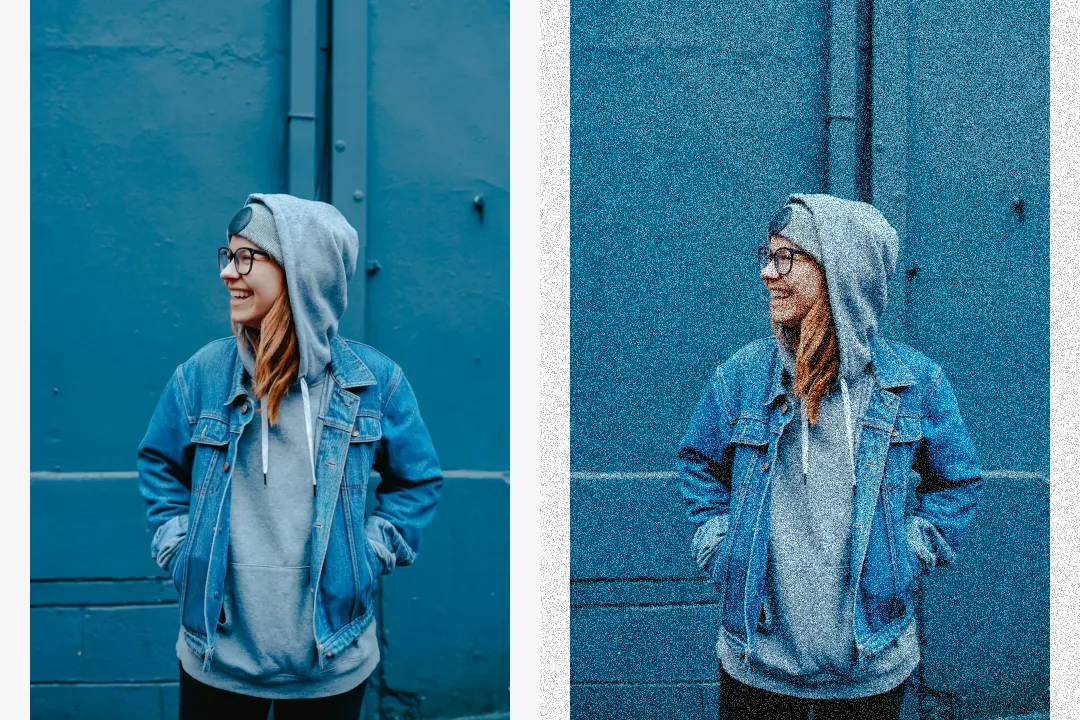
Control noise strength, grain size, and noise type.
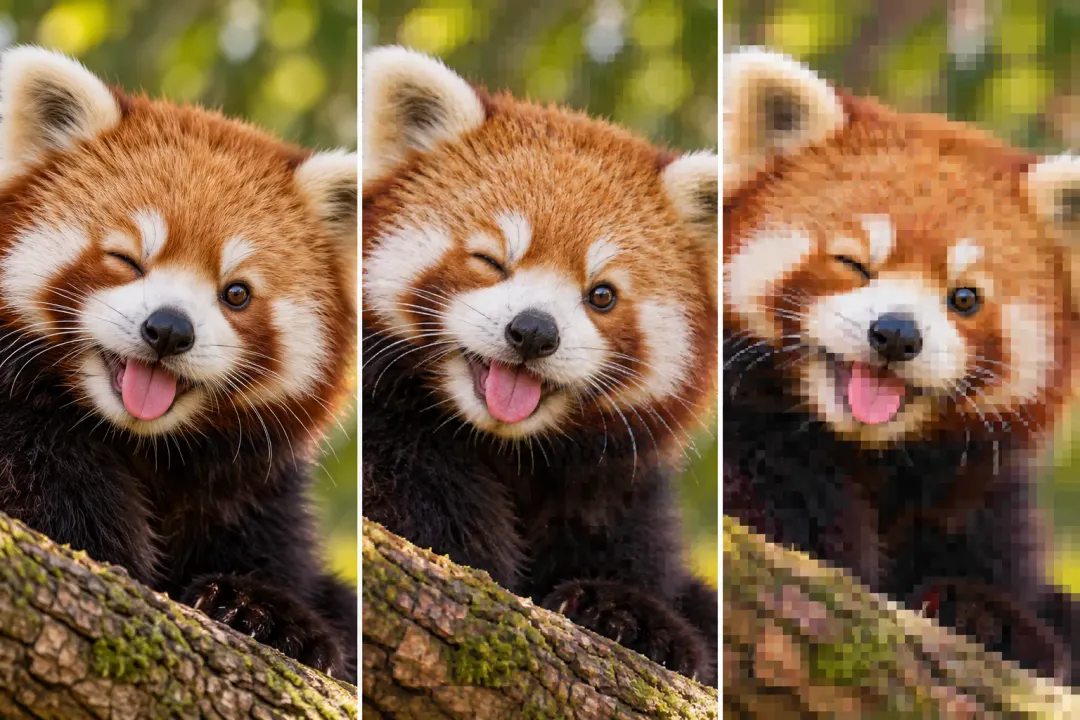
Add compression blocks, repeated saves, and color bleed.