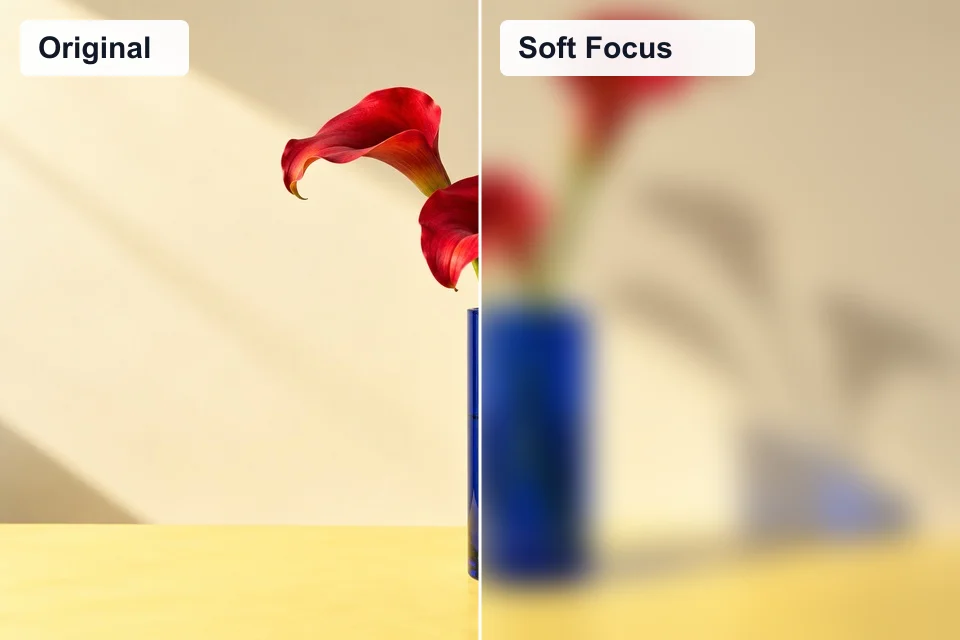
Make Image Blurry
Try soft focus, round lens blur, directional streaks, radial zoom or spin, and shaky meme blur. Set the angle or drag the blur center.
Edit original photoA free low quality image maker that runs entirely in your browser. Drop a photo, pick an effect, and download the degraded version in seconds.


JPG, PNG or WebP, up to 10 MB. Convert HEIC to JPG first.
On-device processing. Free, no watermark.
Download size: Preparing…
Lower JPEG quality adds stronger compression. Dimensions refer to the working copy, up to 4096 px / 12 MP.
JPEG damage is baked into all formats. JPG uses a white background; PNG and WebP keep transparency.
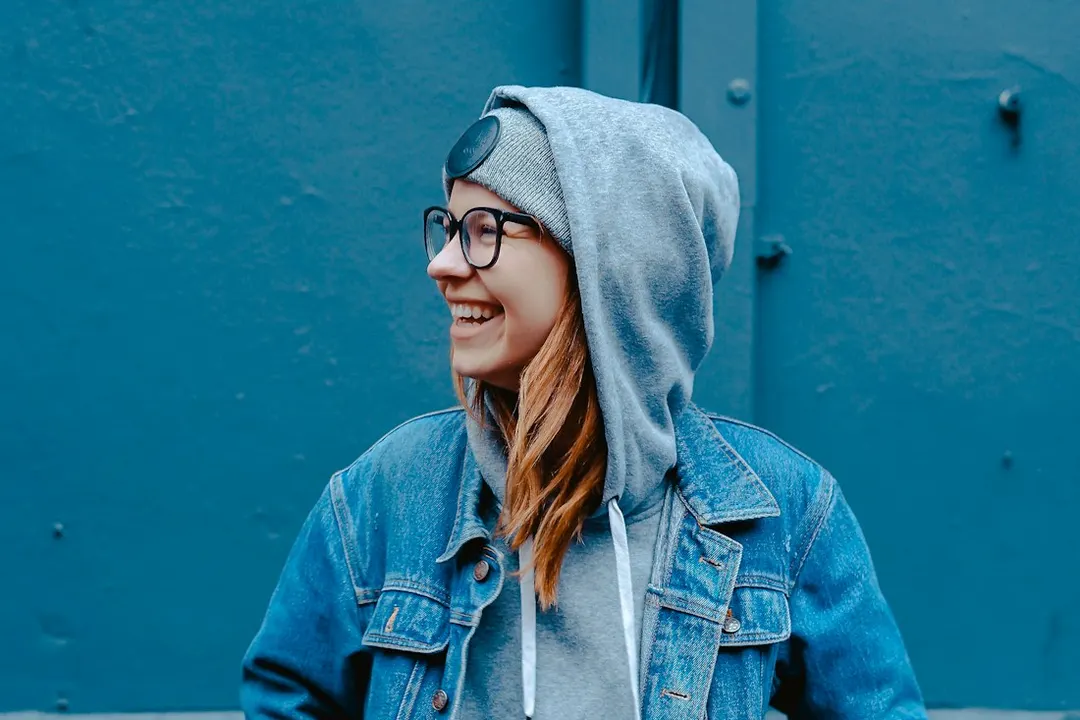
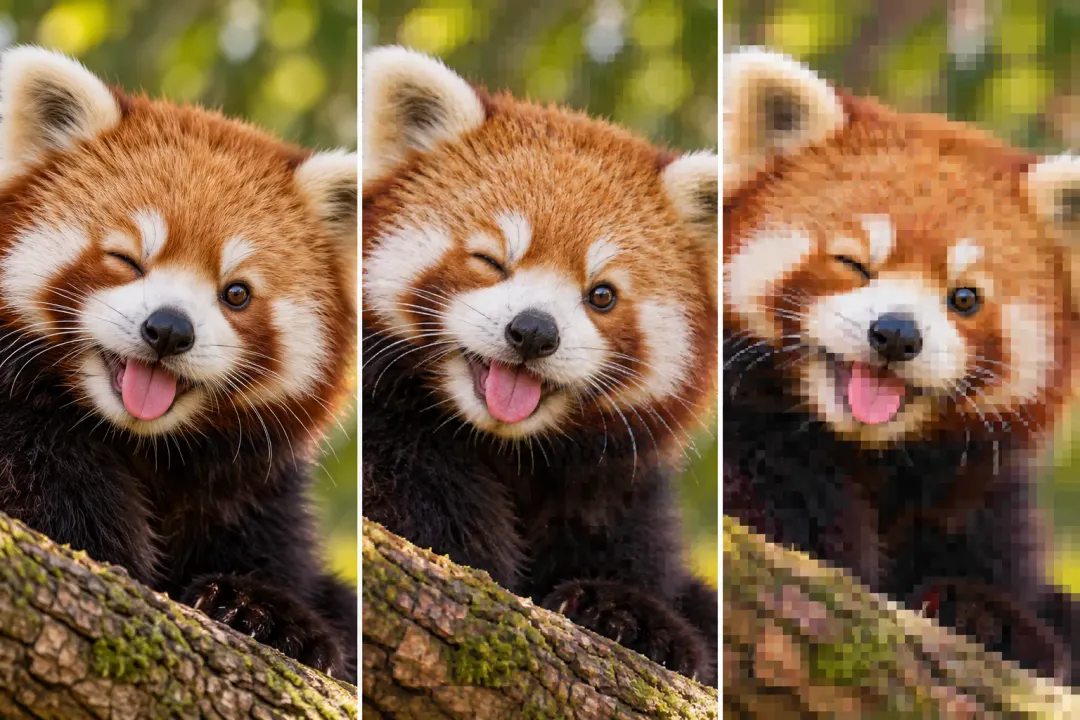
See the original and low quality result together, in the live editor above. Supplied gallery illustrations are labeled examples; buttons apply suggested presets to the editor.



Open a dedicated tool for finer controls. These links take you to another page; Edit original photo carries your input with you. Preview artwork illustrates each style.
Try soft focus, round lens blur, directional streaks, radial zoom or spin, and shaky meme blur. Set the angle or drag the blur center.
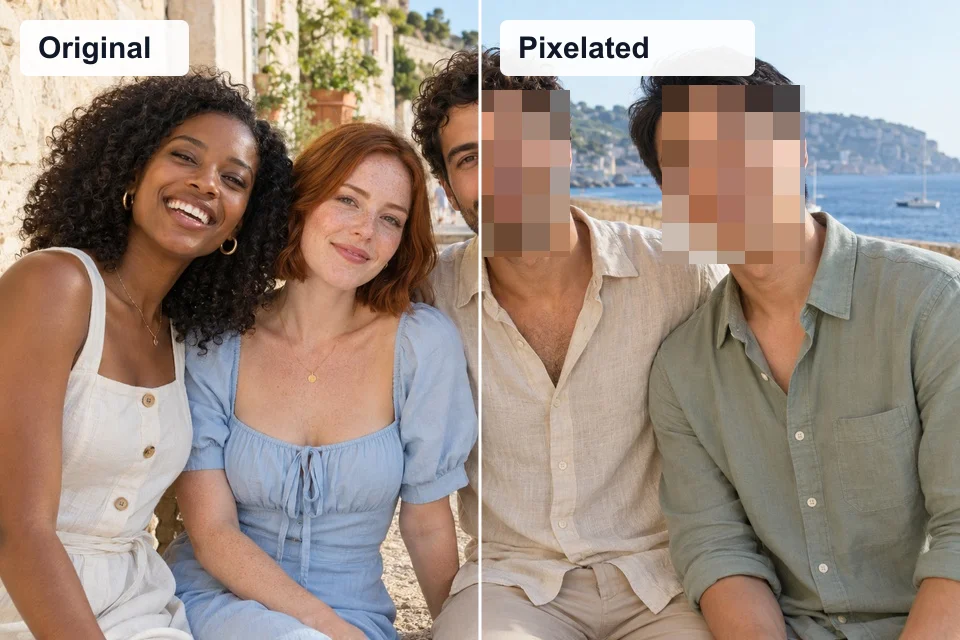
Edit original photoHide faces, names, or license plates with rectangle, ellipse, or brush selections. Pixelate several areas or cover sensitive details with a solid block.
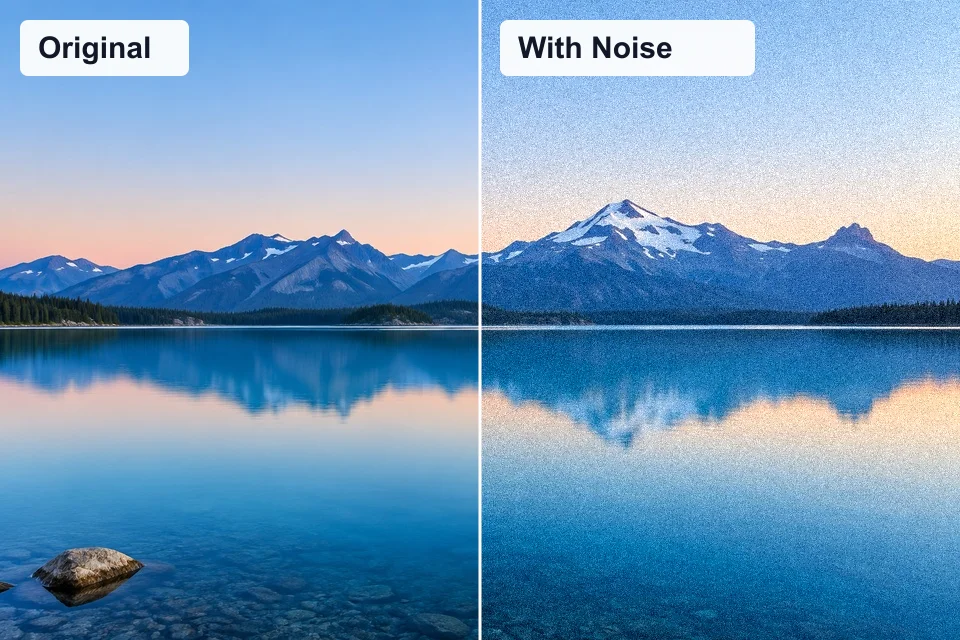
Edit original photoAdd monochrome noise, colorful speckles, or softer film grain. Control coverage and strength separately.
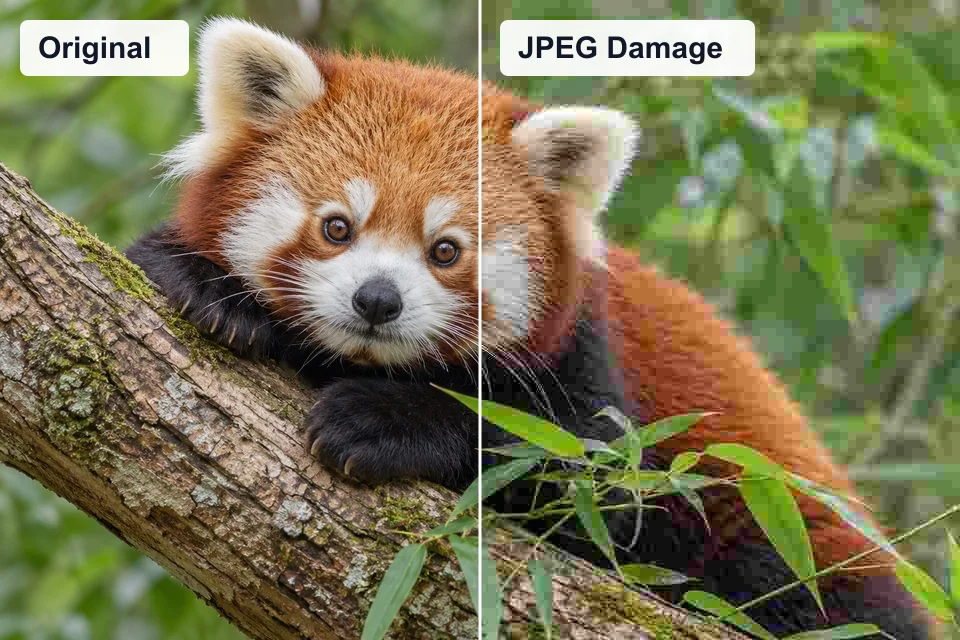
Edit original photoAdd real compression blocks, re-save up to 100 times, strengthen color bleed, and inspect the result at 400%.
Edit original photo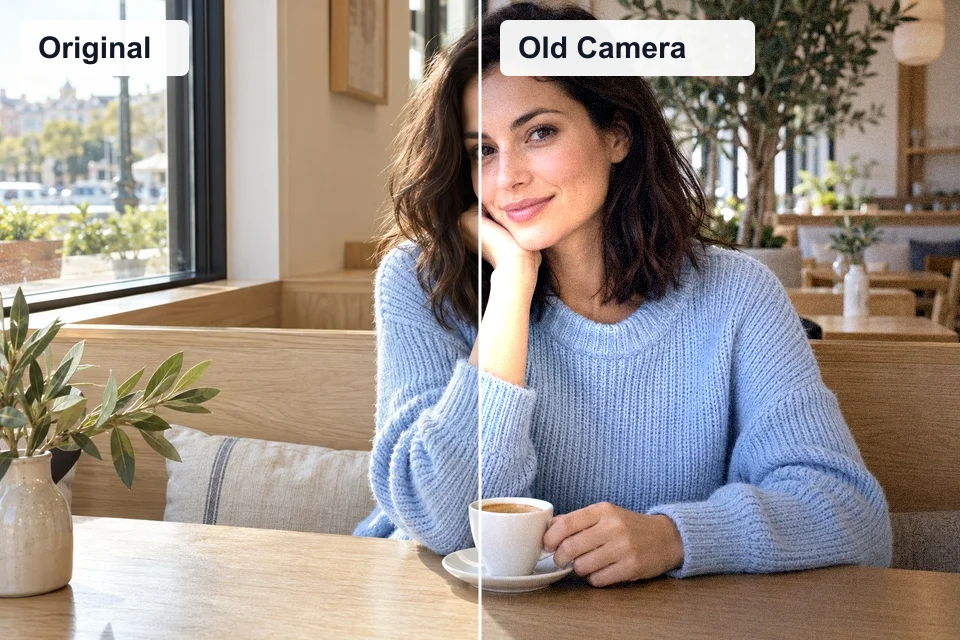
Six camera-inspired looks, from cool digital snapshots to warm, faded prints.
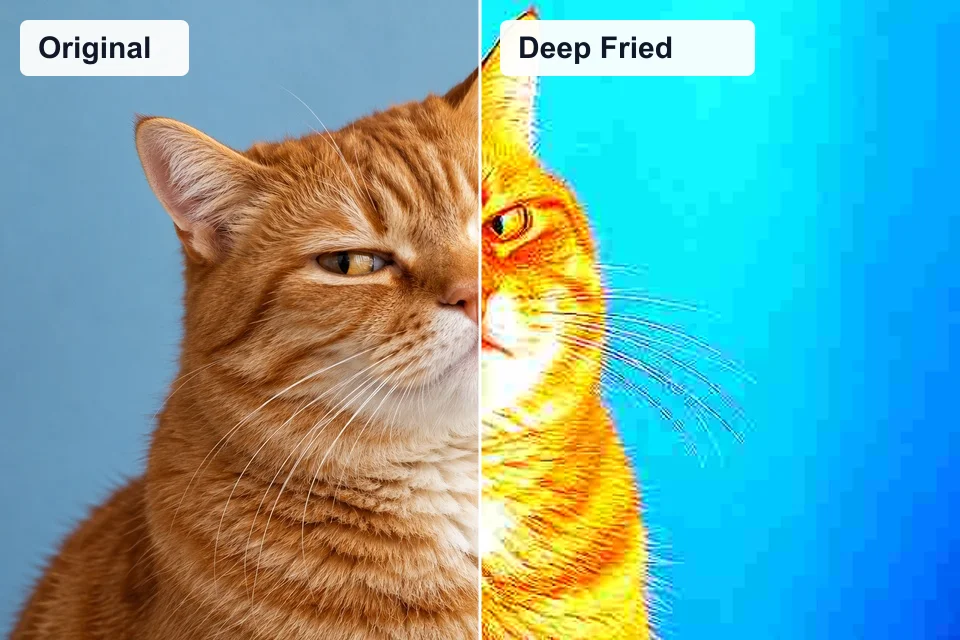
Edit original photoMake a deep fried meme with strong contrast, saturated colors, sharpening, and real JPEG compression. Choose a fry level and adjust each effect.
Edit original photoA low quality image maker deliberately reduces detail instead of repairing a photo. The default Low Quality preset combines a smaller working image, light noise and strong JPEG compression for a compressed, reposted look. Upload a photo and this preset is applied automatically; choose JPG, PNG or WebP when you download.
Every preset starts from the loaded source image rather than the previous result, so switching looks does not accumulate damage from earlier edits. Processing stays on your device, with no upload, account or watermark.
The Blurry preset softens fine edges and hides texture; the Pixelated preset reduces the whole photo to a coarse grid. Both are applied to the entire image here on the homepage.
To make an image blurry in one direction only, or to blur around a subject, use the dedicated blur tool. To pixelate a face, a plate or a name, open the pixelation tool and draw over just those areas.
The Noisy preset adds visible grain and texture. JPEG Crushed pushes compression far enough to break up gradients and smear fine detail into blocks. Both are intentional effects, not repair tools.
For control over grain type, speckle colour or strength, open the noise tool. For repeated re-saves and colour bleed, the JPEG artifact generator lets you stack compression passes.
The Old Camera preset combines small dimensions, a little softness, noise, and JPEG damage for a rough early-digital look.
For camera-specific styling, flash, frames, or date stamps, try an old camera filter by era. The homepage preset stays a simple combination.
Click the canvas, drop a JPG, PNG or WebP, or paste a screenshot.
The low quality image maker applies the Low Quality preset automatically. Try another preset if you want a different effect.
Save the preview as JPG, PNG, or WebP, right here on the homepage.
Add intentional low-fi damage to a reaction image. Preview small text before sharing so the joke stays readable.
Try chunky pixels for a reaction or emoji image. Check Discord’s current upload limits before posting.
Make a clean picture look reposted. Use the meme maker in the full tools index if you also need captions.
Start with a recognizable face, then add a little compression or grain. Keep important details visible at small sizes.
Low quality is not one setting. It can come from four kinds of visible damage, often combined in the same picture.
Use the table below to identify the look you want, then pick the matching preset above instead of stacking every effect at once.
| What you see | What can cause it | Preset to use |
|---|---|---|
| Blocky squares around edges | JPEG compression | JPEG Crushed |
| Stair-step outlines, mosaic faces | Very low resolution | Pixelated |
| Speckles in flat areas | Sensor noise or added grain | Noisy |
| Unreadable small text | Resizing plus compression | Low Quality |
| Small, soft, grainy image | Reduced dimensions, softness, noise and compression | Old Camera |
A low quality image maker is a tool that deliberately degrades a photo instead of improving it. It lowers resolution, applies heavy JPEG compression, and can add blur or noise, so the result looks like a compressed, reposted or old-device image. People use one for memes, reaction images, thumbnails and retro looks — not for repairing bad photos.
Upload your photo here. The default Low Quality preset automatically reduces resolution, applies JPEG compression, and adds light noise. Download it immediately, try another preset, or use the size and quality controls.
Yes. You can upload, edit, and download without an account.
Yes. Your photos are processed on your device and are not uploaded to a server.
Resolution changes the number of pixels. The JPEG quality slider controls how strongly JPEG compression affects the image. Lower values add stronger compression artifacts before export, including when you save as PNG. Export format controls the final file type; PNG and WEBP retain transparent areas, while JPG uses white.
The tool makes a new file. Your original photo stays as it is.
An image is usually called low quality when it is visibly damaged by resizing, compression, noise, or softness — not simply because it is small. A sharp 400 px thumbnail may be suitable for its purpose, while a 2000 px photo saved with very strong JPEG compression can show obvious damage. Judge the visible result at the size where it will be used.
Open this page in your phone browser, tap the upload area, and choose a JPG, PNG, or WebP photo from your photo library or Files app. Convert HEIC photos to JPG first. Pick a preset, choose JPG, PNG, or WebP, then tap Download. Where the file is saved depends on your browser and device; check Downloads or Files, then use the device’s share or save action if you want it in your photo library.
Usually, but not always. Lowering the resolution and the JPEG quality throws away data, which can make the file smaller. Added noise works the other way: grain is hard to compress, so a noisy image can end up larger than the original. The export format also affects file size. If a smaller file is the actual goal, use the image quality reducer instead to choose a target size in KB and check the actual output.
No. Pixelation is one specific kind of damage: the image is reduced to a coarse grid so edges turn into blocks. A low quality image can be blurry, noisy, or heavily compressed without obvious pixel blocks. If you want blocks specifically, use the pixelate image tool; if you want the overall look of a degraded picture, start with the homepage presets.
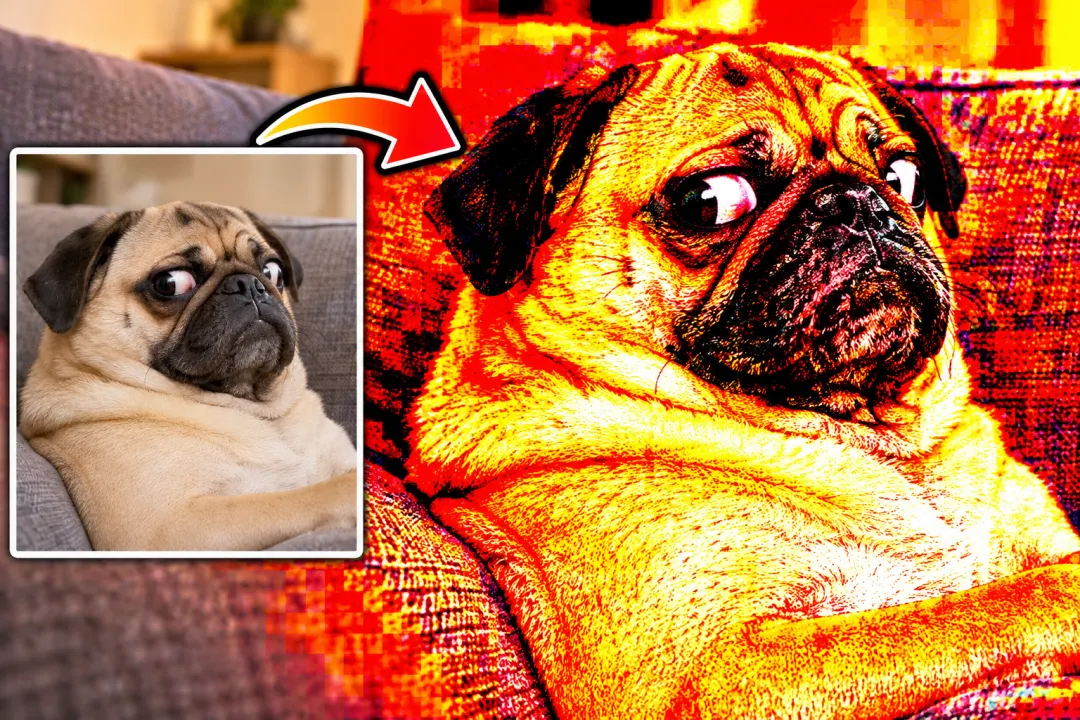
Push saturation, sharpening, and compression for a crunchy meme.
Add compression blocks, repeated saves, and color bleed.
Compress to a maximum file size in KB and check the real output.