
Image Splitter
Split an image into a grid with 1–10 rows and columns. Preview the cuts, download individual tiles, or save every tile in one ZIP file.

Your image tiles
Preparing sample…
How to Use the Image Splitter
Upload an image, choose rows and columns, then check the numbered tiles below the cut guide. Save one tile using its link, or choose Download ZIP for all tiles in row-by-row order.
Split an Image Into Equal Tiles
Image Splitter cuts one working image into rectangular tiles. Rows determine the horizontal bands and columns determine the vertical divisions. A 1-by-3 layout produces three side-by-side pieces; a 3-by-1 layout produces a top, middle and bottom piece. A 3-by-3 layout creates nine tiles. You can choose 1–10 rows and 1–10 columns, up to 100 files.
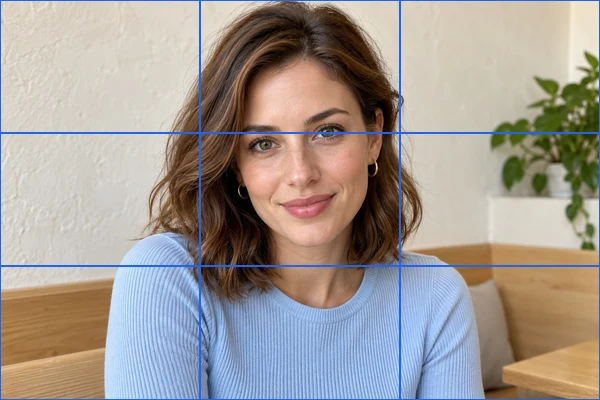
The blue lines show where the cuts will fall. They are guides only and are never saved inside a tile. If an image dimension cannot be divided evenly, neighboring tiles can differ by one pixel. Every working-image pixel belongs to one tile, with no gap and no overlapping strip. Row and column counts cannot exceed the working image's pixel dimensions.
For an evenly divisible image, each tile is the working width divided by the number of columns and the working height divided by the number of rows. A 1,200 × 900 working image split into three columns and three rows gives nine 400 × 300 tiles. Cutting copies those rectangular pixel regions; it does not stretch each tile to a new size. Resizing, when needed for a large upload, happens before the split.
Read Tile Names and Choose a Download
Tile names identify their position: tile-r01-c01 is the top-left tile, tile-r01-c02 is the next tile to its right, and tile-r02-c01 starts the second row. The individual previews follow that same row-by-row order. Use a tile's download link when you only need one piece, or Download ZIP to save the complete set.
The ZIP contains the tiles in the selected PNG, JPG or WebP format, not the guide image. Extract the archive on your device before importing the files into another application. Changing the grid or export format regenerates the tiles; Download is temporarily disabled until the new set is ready.
What People Split Images For
Plan an Instagram or profile mosaic
Split a design into separate files for a multi-post profile grid. The platform controls preview crops and display order; this tool neither forces square tiles nor uploads them. Check tile proportions and posting order before publishing.
Turn a tall picture into sequential posts
Choose one column and several rows to divide a long illustration or infographic into a top-to-bottom sequence. Check the cut lines first so text and faces do not fall across a boundary.
Divide a design into columns
Choose one row and multiple columns to make side-by-side panels for a presentation or multi-part layout. Each panel keeps its own part of the source, with no overlapping strip.
Reuse selected sections
Download individual tiles for a visual puzzle, a layout exercise or a set of design elements. The grid uses evenly spaced cuts; it is not a freehand crop tool. To combine separate files into one picture instead, use Merge Images.
Keep the Detail You Need
Uploads larger than 2,400 pixels per side are first resized proportionally. The grid is cut from that working copy, not the full-resolution original. A tile from a nine-part image therefore has fewer pixels than the complete working photo. Check each tile's displayed dimensions before using it for print or a large display.
Choose PNG when crisp lettering, transparency or lossless pixel preservation matters. JPG flattens transparency onto white and applies lossy compression to each tile. WebP is also available. If a tile needs mirroring, use Image Flipper; if its file size is too large, use Image Quality Reducer after downloading it.
Photo Splitter: Cutting a Photo Into Equal Parts
A photo splitter, image cutter or image divider can describe this job: dividing one picture into adjacent parts along a regular grid. Unlike a crop, which keeps a selected region and discards the rest, a grid split keeps all the parts. The tiles can reassemble into the complete working image with no gaps or overlaps; integer rounding can make neighboring tiles differ by one pixel.
Choose a grid when you need all the sections of a banner, screenshot, poster or picture puzzle. Choose a crop or selection editor when you only want one person, object or irregular region. A split does not automatically make square posts or prepare print margins: tile proportions depend on the source and grid, and printing across sheets needs separate sizing and printer setup.
How to Split a Picture in Half or Into Thirds
To split a picture in half, set 1 row and 2 columns for side-by-side halves, or 2 rows and 1 column for top and bottom halves. For three panels, use 1 row and 3 columns. A 3-by-3 grid makes nine pieces, which are square only when the working image is square.
An odd working width can make two side-by-side tiles differ by one pixel; an odd height can do the same for top and bottom tiles. The tool distributes that remainder rather than losing edge pixels. For exact equality, prepare working dimensions divisible by the number of columns and rows.
To split an image into unequal sections, use an editor with independently positioned cut lines or make separate crops. Resizing the whole photo proportionally does not change the relative grid boundaries and cannot provide arbitrary cuts.
Image Splitter FAQ
Will cutting leave gaps or lose edge pixels?
No. The grid covers the complete working image with no overlap or gaps. When dimensions do not divide evenly, tile sizes differ by one pixel.
What is in the ZIP file?
Every tile in your chosen PNG, JPG or WebP format. Names such as tile-r01-c02 identify the row and column, starting at the top left. Guide lines are never included in the tiles.
Can I use this for a social media grid?
Yes, but this tool preserves your image proportions rather than forcing square tiles. Posting order and platform cropping vary; check the platform before publishing.
Are full-resolution photos preserved?
Images larger than 2,400 pixels per side are proportionally resized before cutting. Use the displayed working dimensions and tile sizes to check your output.
Can I split an image into unequal parts?
No. Choose rows and columns for a regular grid; you cannot drag individual cut lines or choose arbitrary crop sizes. If the working dimensions do not divide evenly, neighboring tiles can differ by one pixel to keep every edge pixel.
Does splitting an image make it blurry?
The cut itself copies pixels without resampling them. However, uploads larger than 2,400 pixels on a side are resized proportionally before cutting, and JPG or WebP export can lose fine detail through compression. Choose PNG to preserve the working copy's pixels without lossy encoding, and check tile dimensions before enlarging a tile.
Can I split a picture into 2 equal halves?
Yes. Use 1 row and 2 columns for side-by-side halves, or 2 rows and 1 column for top and bottom halves. If the working dimension along the split direction is odd, the tile widths or heights differ by one pixel.
Is a photo splitter the same as cropping?
No. Splitting divides the complete working image into adjacent pieces that reassemble into it; cropping keeps one region and discards the rest. Split when you need all the parts, and crop when you only need one.